

Call us: +86-137-2353-4866
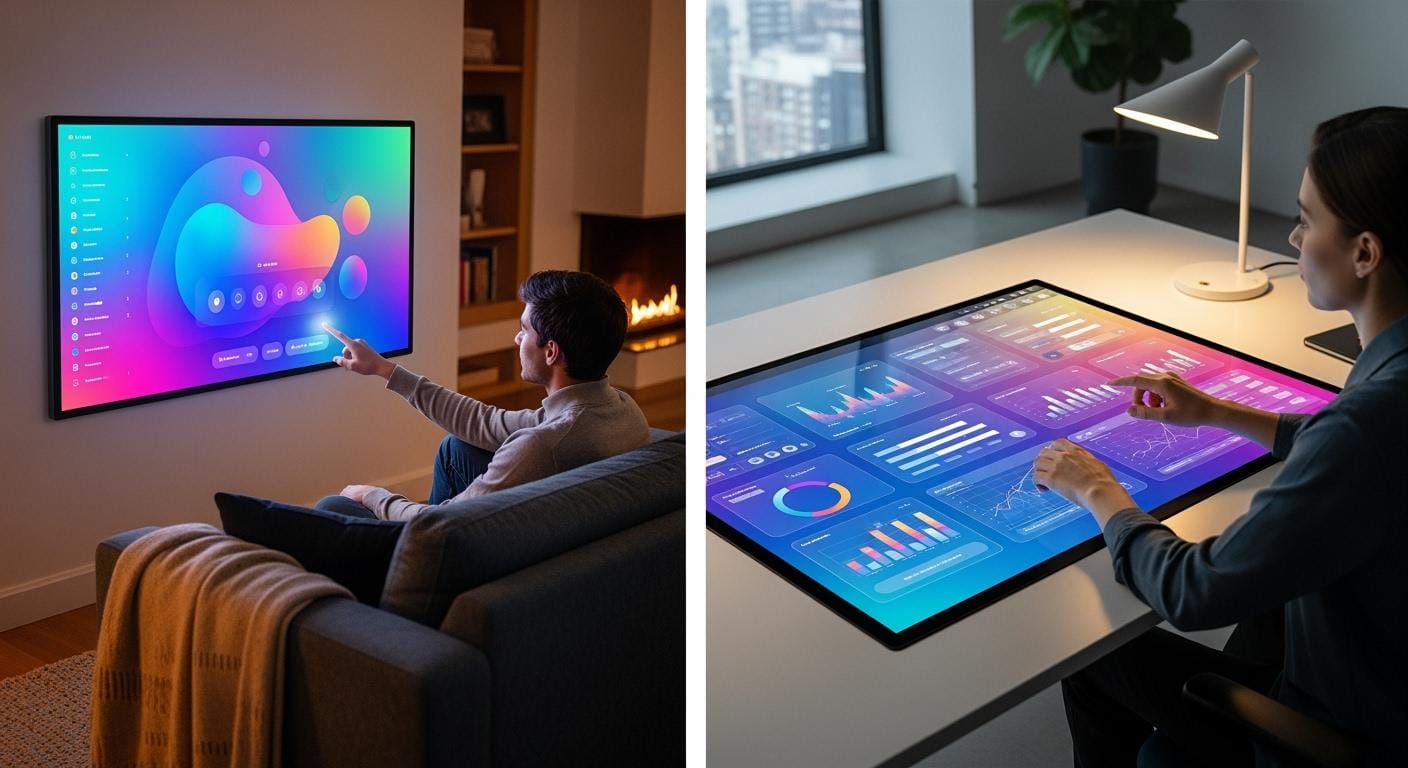

If you’re searching for outstanding touch screen displays for your home or office, consider the SOUSHINE touch panel, Google Nest Hub Max, Dell P2418HT, ViewSonic TD2230, ASUS VT229H, and uPerfect Touchscreen Monitor. The right touch screen can boost your productivity and make smart home control effortless. Touch panel devices are now a staple in modern environments thanks to smart technology and interactive tools in both homes and offices. It’s important to choose a display that delivers reliable performance, useful features, and seamless operation. Take a look at the standard rating metrics below:
| Performance Metric | Description |
|---|---|
| Touch Technology | 10-point projected capacitive touch for accurate, quick use. |
| Viewing Angles | Wide 178° angles for clear views from anywhere. |
| Resolution | Full HD for sharp pictures and details. |
| Surface Hardness | Scratch-resistant for long-lasting use. |
| Eye Comfort | Flicker-Free and Blue Light Filter for easy viewing. |
Table of Contents
Key Takeaways
- Pick a touchscreen display that matches what you need. It should help you work better at home or at work.
- Check for things like multi-touch support and Full HD resolution. Scratch-resistant surfaces help the screen last longer and work well.
- Smart displays like the Google Nest Hub Max can control smart home devices. They also help you manage your daily tasks easily.
- Think about the Dell P2418HT because it has an ergonomic design. It is flexible and works well for different work setups.
- The SOUSHINE Touch Panel uses advanced PCAP technology. This gives fast and accurate touch responses, which is great for interactive use.
- Look at connection options like HDMI and USB-C. This makes sure the display works with your devices.
- Durability is important, so pick displays made with strong materials. High IP ratings mean the display will last longer in busy places.
- Always read user reviews before you buy a display. Reviews help you know how the display works in real life.
Best Smart Displays Overview
Smart displays have changed how you use technology at home and work. These devices mix touchscreens with smart features. They make daily tasks simple and fun. You can use them to control lights or check your calendar. You can join video calls or show family photos. Smart displays help you stay organized and connected. They are helpful when you work or relax.
Top-rated Models List
When you want the best smart displays, you look for ones that fit your needs and style. Here are some top-rated models to think about:
- SOUSHINE Touch Panel
- Google Nest Hub Max
- Dell P2418HT
- ViewSonic TD2230
- ASUS VT229H
- uPerfect Touchscreen Monitor
Each model has something special. SOUSHINE Touch Panel is known for its advanced PCAP technology and modern look. Google Nest Hub Max is great for smart home control and video calls. Dell P2418HT gives you a flexible workspace and a fast touchscreen. ViewSonic TD2230 and ASUS VT229H have clear pictures and work well. uPerfect Touchscreen Monitor is easy to carry and set up.
Why These Are the Best
You might ask why these are the best smart displays for home and office. Let’s explain:
Smart displays make life easier by helping with tasks and giving quick feedback. You can manage your schedule, set reminders, and control smart devices with a tap or swipe.
Here are some reasons these models are great:
- You can control lights, thermostats, and security systems.
- You can pick what shows on your screen, like photos or news.
- Many people can use them, so everyone gets their own info.
- Privacy features keep you safe, even on video calls or with voice assistants.
- Smart displays help you work better by syncing calendars and stopping schedule problems.
You get more than just a touchscreen. The best smart displays help you work smarter and stay in touch. They make your space better. Features like multi-touch, high-resolution screens, and strong materials make these models last. You can use them in meeting rooms, kitchens, bedrooms, or shared spaces. They fit into your life and make using technology easy.
If you need a display that keeps up with your busy day, these top models are a good choice. The best smart displays give you convenience, style, and smart features. They help your home or office run well.
SOUSHINE Touch Panel Review
Touch Screem Technology
You want a touch screen that feels smooth and reacts fast. SOUSHINE uses Projected Capacitive (PCAP) technology. This means you get a touch screen that picks up every tap and swipe with high accuracy. The panel has a grid of tiny wires inside the glass. When your finger gets close, the touch screen senses the change and responds right away. You can use more than one finger at a time, so multi-touch gestures work perfectly. The glass is strong and easy to clean. You don’t have to worry about scratches or dust. The touch screen stays clear and bright, even in busy places.
Tip: If you want a touch screen for a smart home or office, PCAP technology gives you the best experience.
Key Features
SOUSHINE’s touch screen panels stand out because of their smart design and strong build. Here’s what you get:
- Multi-touch support for easy gestures
- Chemically strengthened glass for durability
- Edge-to-edge design for a modern look
- High IP rating for dust and water resistance
- Zero-latency response for instant feedback
- Custom sizes to fit your space
- Optically bonded layers for clear viewing
You can install the touch screen in walls, appliances, or meeting rooms. The panel blends into your décor and keeps everything looking neat. The touch screen works well in bright light, so you see every detail.
| Feature | Benefit |
|---|---|
| Multi-touch | Use gestures and shortcuts |
| Scratch-resistant | Lasts longer, easy to clean |
| Customizable size | Fits any room or device |
| Fast response | No waiting, just tap and go |
Pros and Use Cases
You get a lot of value from SOUSHINE’s touch screen panels. They make your home smarter and your office more productive. You can use the touch screen for digital photo frames, smart whiteboards, or control panels. The touch screen helps you manage lights, security, and schedules with a simple tap. In offices, you can set up the touch screen for team meetings or presentations. The panel works well in public spaces, too. It stands up to heavy use and keeps working day after day.
- Home automation control
- Interactive displays for family photos
- Meeting room scheduling
- Collaborative workspaces
- Public kiosks and information centers
Note: SOUSHINE’s touch screen panels give you a reliable, stylish, and easy-to-use solution for any space.
Dell P2418HT Review
Display Features
You want a touchscreen that is easy to use and looks good. The Dell P2418HT gives you both. The screen is 23.8 inches wide. It shows clear pictures with Full HD resolution. You can use 10-point touch to tap, swipe, or pinch. The screen reacts fast to your fingers. This makes moving around easy.
The stand lets you tilt, turn, and move the monitor. You can set it up for comfort. You can even lay it almost flat to draw or write. Anti-glare helps you see the screen in bright rooms. You do not need to worry about fingerprints or glare.
Dell uses ComfortView™ to block blue light. This keeps your eyes safe during long work. The screen does not flicker, so your eyes do not get tired. There are many ports like VGA, DisplayPort, HDMI, USB 3.0, and USB 2.0. You can connect your laptop or desktop easily.
Here is what makes the Dell P2418HT special:
| Feature | Description |
|---|---|
| 10-point touch | Tap, swipe, and pinch with your fingers |
| Ergonomic stand | Move and tilt for comfort |
| Full HD resolution | See sharp pictures and words |
| Anti-glare technology | Fewer reflections and fingerprints |
| ComfortView™ | Blocks blue light for your eyes |
| Flicker-free screen | Less eye strain |
| Cable management | Keeps your desk neat |
| Multiple ports | Connects to many devices |
| VESA compatibility | Easy to mount on walls or arms |
Tip: If you want a monitor that fits your space, the Dell P2418HT is a good choice.
Pros and Use Cases
The Dell P2418HT gives you many good things for home or office. The touch screen helps you work faster. You can open apps, scroll, and zoom with your fingers. The stand helps you find the best angle. You stay comfortable all day.
The screen makes video calls and presentations look great. Colors and details are easy to see. The anti-glare keeps your view clear in bright rooms. You do not need to clean the screen often. It does not show fingerprints easily.
You can use the Dell P2418HT for many jobs:
- 📊 Office work: Edit files, use spreadsheets, and join meetings.
- 🎨 Creative projects: Draw, sketch, and design with touch.
- 🏠 Home use: Watch movies, surf the web, and play games.
- 🖥️ Collaborative spaces: Share ideas and work together.
- 🏢 Public kiosks: Make displays for visitors to use.
Dell’s Display Manager helps you set up your workspace. You can arrange apps and change colors. The cable system keeps your desk clean. You can mount the monitor on a wall or arm with VESA.
Note: The Dell P2418HT is a strong, flexible, and simple touchscreen. You can use it in many places and always have a good experience.
Google Nest Hub Max Review
Smart Display Functions
You want a smart display that does more than just show the time. The Google Nest Hub Max gives you a big 10-inch touchscreen that feels bright and easy to use. You can swipe, tap, and talk to it. The built-in camera lets you make video calls with Google Duo. You can wave your hand to pause music or stop a timer. That feels pretty cool when your hands are messy from cooking.
The Nest Hub Max works as your personal assistant. You can ask Google Assistant to check the weather, set reminders, or play your favorite songs. The display shows your calendar, to-do lists, and even step-by-step recipes. You can watch video streaming from YouTube right on the screen. If you want to see who’s at the door, just ask. The camera can even act as a security camera when you’re away.
Here are some things you can do with the Nest Hub Max:
- Make hands-free video calls
- Watch cooking videos while you work in the kitchen
- Listen to music with strong speakers
- See your daily schedule at a glance
- Control smart home devices with your voice or touch
Tip: Try using voice commands like “Hey Google, play relaxing music” or “Show me my calendar.” You’ll save time and keep your hands free.
Home Integration
You want your smart display to fit right into your home. The Google Nest Hub Max does that well. It connects with many smart home devices. You can control lights, thermostats, and cameras from the screen. The Home View dashboard shows all your connected devices in one place. You just tap to turn things on or off.
The Nest Hub Max also works as a digital photo frame. It pulls pictures from Google Photos and shows them on the screen. Your family and friends will love seeing new photos every day. The device blends into your kitchen, living room, or bedroom. The design looks simple and modern.
You can set up Voice Match so each person in your home gets their own reminders and calendar. The camera can recognize faces and show personal messages. Privacy controls let you turn off the camera and microphone when you want. You always stay in control.
| Home Integration Features | What You Get |
|---|---|
| Smart device control | Lights, thermostats, cameras |
| Personal routines | Custom reminders, schedules |
| Digital photo frame | Family photos on display |
| Voice Match | Personal info for everyone |
| Privacy controls | Camera/mic on-off switch |
Note: The Google Nest Hub Max makes your home smarter and your life easier. You get a helpful assistant, a control center, and a fun display all in one.
ViewSonic TD2230 Review
Display Features
If you want a touchscreen monitor that is easy to use and looks good, the ViewSonic TD2230 is a great choice. The monitor has a 22-inch screen with Full HD resolution. You see clear pictures and bright colors every time you use it. The screen has strong glass that protects it. You can tap, swipe, and drag without worry. The glass keeps the touch working well, even after lots of use.
This monitor works with many devices. The TD2230 has DisplayPort, HDMI, and VGA inputs. You can connect your laptop, desktop, or media player. Switching between devices is quick and simple. The monitor supports multi-touch, so you can use gestures. You can pinch to zoom, swipe to scroll, or tap to select. Everything feels easy and natural.
Eye comfort is important, especially if you work for hours. The TD2230 uses Flicker-Free technology and a Blue Light Filter. Your eyes stay comfortable, even during long work times. You can focus on your tasks without feeling tired.
Here are the main specs:
| Specification | Description |
|---|---|
| Touch Capabilities | Strong glass faceplate for good touch |
| Connectivity Options | DisplayPort, HDMI, and VGA for many devices |
| Ergonomic Design | Bookstand design for easy angle changes |
| Eye Comfort Features | Flicker-Free and Blue Light Filter for less eye strain |
| Cross Compatibility | Works with Windows 10, some Android, and Linux |
Tip: If you want a monitor that is easy on your eyes and helps you work well, the TD2230 is a good pick.
Office Applications
You want a monitor that fits into your office work. The ViewSonic TD2230 does this well. Its bookstand design lets you change the angle. You can tilt the screen for drawing, writing, or just seeing better. This helps you stay comfortable all day.
The TD2230 works with many systems. You can use it with Windows 10, some Android devices, and Linux. This makes it easy to set up in different offices. You do not need to worry about it not working.
In a busy office, you need a monitor that can do many things. The TD2230 is great for meeting rooms, reception areas, and shared spaces. You can use it for interactive presentations, digital whiteboards, or check-in stations. The strong glass faceplate lasts a long time. You get a monitor that can handle lots of use.
Here are some ways to use the TD2230 in your office:
- Run interactive presentations with touch
- Set up digital kiosks for visitors or workers
- Use as a whiteboard for group ideas
- Show schedules or news in common areas
You get a monitor that changes to fit your needs. The TD2230 helps you work better and faster. It brings touch and comfort together, making your office modern and productive.
Note: The ViewSonic TD2230 gives you a strong, flexible, and easy-to-use touchscreen for any office.
ASUS VT229H Review
Display Features
You want a touchscreen that feels smooth and looks sharp. The ASUS VT229H gives you just that. The 21.5-inch screen supports 10-point multi-touch, so you can use all your fingers for swiping, tapping, and zooming. You get a fast response every time you touch the screen. The Full HD resolution makes images and text look crisp. Colors pop, and details stand out.
The design stands out with a circular base and a tilting stand. You can adjust the angle to fit your view. This helps you stay comfortable whether you sit or stand. The screen uses ASUS Flicker-Free technology. Your eyes feel less tired, even after hours of use. The TÜV Rheinland-certified Blue Light Filter blocks harmful blue light. You can read, work, or play without worrying about eye strain.
The VT229H connects easily to your devices. You get HDMI and VGA ports. You can hook up your laptop, desktop, or media player. Switching between devices feels simple. The display has a 7H hardness rating. The screen resists scratches and wear. You get a monitor that stays looking new, even with daily use.
Here’s a quick look at the main features:
| Feature | Description |
|---|---|
| Multi-Touch Capability | Supports 10-point multi-touch for enhanced interaction and efficiency. |
| Ergonomic Design | Features an elegant circular base and a tilting stand for optimal viewing angles. |
| Eye Care Technologies | Includes ASUS Flicker-Free technology and a TÜV Rheinland-certified Blue Light Filter to reduce eye strain. |
| Connectivity | Multiple video connectors (HDMI and VGA) make it versatile for home and office setups. |
| Durability | The display has a 7H hardness rating, ensuring protection against scratches and wear. |
Tip: If you want a touchscreen that protects your eyes and stays scratch-free, the VT229H is a smart pick.
Home and Office Use
You can use the ASUS VT229H in many places. At home, the touchscreen makes games and videos more fun. You can swipe through photos or draw with your fingers. The screen responds quickly, so you never feel frustrated. The Full HD display shows movies and pictures in bright colors. You get a great view from any angle.
In your office, the VT229H helps you work faster. You can open apps, scroll through documents, and zoom in on details with a tap. The multi-touch feature lets you use shortcuts and gestures. You save time and get more done. The tilting stand helps you find the best angle for meetings or presentations. You can share your screen with coworkers easily.
The monitor fits into any workspace. You can connect it to different devices with HDMI or VGA. The strong glass keeps the screen safe from scratches. You don’t have to worry about cleaning it often. The eye care features help you stay focused during long work hours.
Here are some ways you might use the VT229H:
- 🏠 Home entertainment: Watch movies, play games, and browse photos.
- 🖥️ Office productivity: Edit documents, join video calls, and present ideas.
- 🎨 Creative work: Draw, sketch, and design with touch.
- 👨👩👧👦 Shared spaces: Set up interactive displays for family or team use.
Note: The ASUS VT229H gives you a flexible, durable, and comfortable touchscreen for any room. You get a display that fits your life and helps you do more every day.
uPerfect Touchscreen Monitor Review
Plug-and-Play Features
You want a touchscreen monitor that works right out of the box. The uPerfect Touchscreen Monitor makes setup easy for you. You just plug it in and start using it. No need to install drivers or mess with complicated settings. This monitor connects to many devices, so you can use it with your laptop, desktop, gaming console, or even your phone.
The monitor gives you several ports for quick connections. You get a USB Type-C port and a mini HDMI port. These let you hook up your devices fast. The USB Type-C port does more than just connect your monitor. You can plug in a keyboard or mouse directly. This makes your workspace neat and simple. You also get a 3.5mm audio port. You can listen with headphones or connect a sound box for better audio.
Here’s a table that shows how the uPerfect Touchscreen Monitor helps you with plug-and-play features:
| Feature | Description |
|---|---|
| Plug-and-Play | Connects easily to many devices without extra setup |
| Ports Available | USB Type-C and mini HDMI for flexible connections |
| Direct Device Connection | USB Type-C lets you plug in keyboards or mice directly |
| Audio Support | 3.5mm audio port for headphones or sound box |
You don’t have to worry about compatibility. The monitor works with Windows, Mac, Android, and gaming consoles. You can switch between devices without hassle. If you travel or move between rooms, you can carry the monitor with you. It’s lightweight and slim, so you can set it up anywhere.
Tip: If you want a monitor that saves you time, choose one with plug-and-play features. You’ll spend less time setting up and more time getting things done.
Value for Money
You want a touchscreen monitor that gives you good value. The uPerfect Touchscreen Monitor offers a lot for its price. You get a high-definition display that shows sharp images and bright colors. The touch response feels smooth and accurate. You can use gestures like tap, swipe, and pinch without delay.
The monitor’s build quality stands out. The screen uses tough materials that resist scratches. You can use it every day and it still looks new. The slim design fits into small spaces. You can use it at home, in the office, or on the go.
You get more than just a screen. The monitor supports multi-touch, so you can use it for drawing, gaming, or working. You can connect it to many devices, which means you don’t need to buy extra adapters. The audio port lets you enjoy music or join video calls with clear sound.
Here are some reasons why the uPerfect Touchscreen Monitor gives you great value:
- You get a portable monitor that works with many devices.
- You save time with easy setup and quick connections.
- You enjoy a clear, bright display for work and play.
- You use multi-touch for creative tasks and productivity.
- You spend less money compared to other monitors with similar features.
If you want a touchscreen monitor that fits your budget and meets your needs, the uPerfect Touchscreen Monitor is a smart choice. You get flexibility, quality, and convenience in one package.
Note: You don’t have to compromise on features or performance. The uPerfect Touchscreen Monitor gives you everything you need for a modern workspace or home setup.
Touchscreen Display Comparison
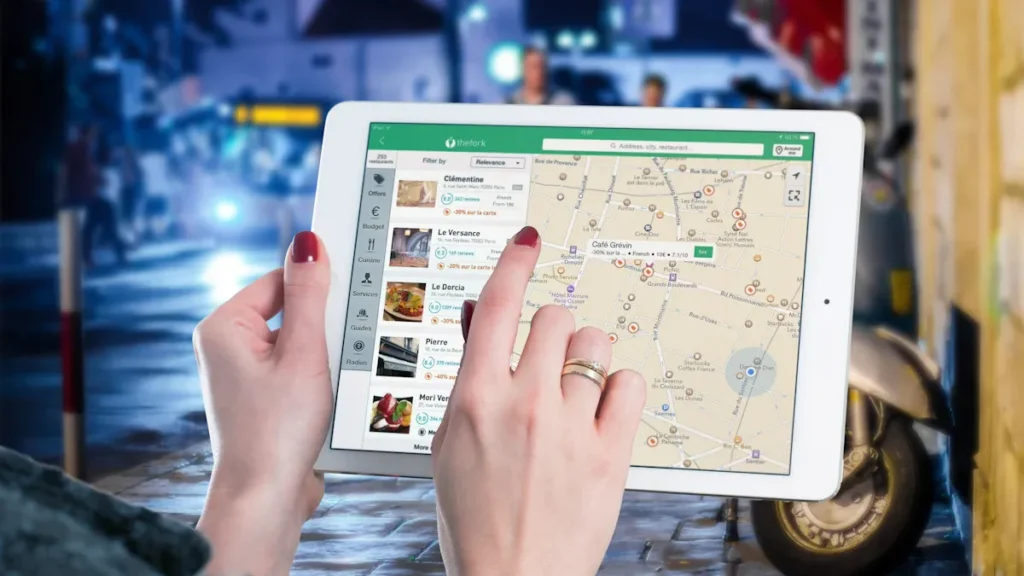
Size and Resolution
When you pick a touchscreen display, size and resolution matter a lot. You want a screen that fits your space and shows clear images. Some people like a big screen for group work or movies. Others want a smaller display for a desk or kitchen counter. Resolution tells you how sharp the picture looks. Higher numbers mean more detail.
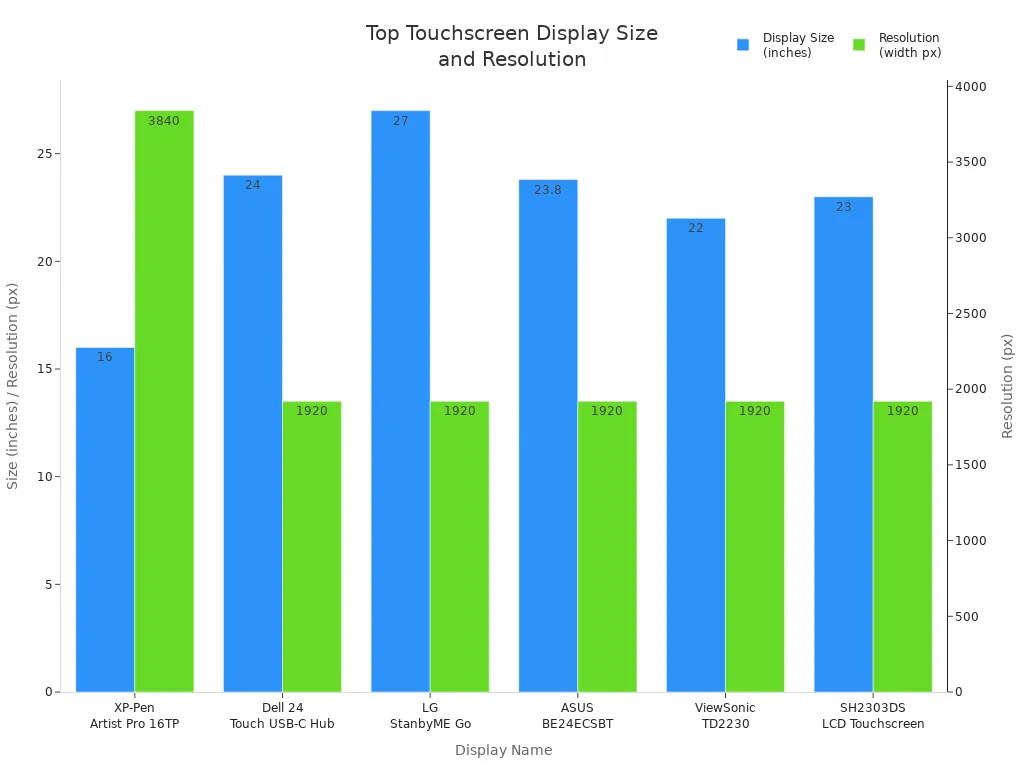
Here’s a quick look at popular models:
| Display Name | Size | Resolution |
|---|---|---|
| XP-Pen Artist Pro 16TP | 16 inches | 3840 x 2160 (4K UHD) |
| Dell 24 Touch USB-C Hub Monitor | 24 inches | 1920 x 1080 (FHD) |
| LG StanbyME Go | 27 inches | 1920 x 1080 (FHD) |
| ASUS BE24ECSBT | 23.8 inches | 1920 x 1080 (FHD) |
| ViewSonic TD2230 | 22 inches | 1920 x 1080 (FHD) |
| SH2303DS LCD Touchscreen | 23 inches | 1920 x 1080 (FHD) |
| Crystalfontz TFT LCD Displays | Various | Up to 1280 x 800 |
You can see that most displays offer Full HD (FHD) resolution. If you want the sharpest image, the XP-Pen Artist Pro 16TP gives you 4K UHD. For bigger rooms or shared spaces, a 24-inch or 27-inch screen works well. For smaller desks, a 16-inch or 22-inch model saves space.
Tip: Choose a screen size that matches your room and a resolution that makes text and images easy to see.
Touch Technology
Touch technology changes how you interact with your display. You want a screen that feels smooth and reacts fast. Most top-rated displays use projected capacitive (PCAP) touch. This technology lets you use more than one finger at a time. You can swipe, pinch, and tap with ease. PCAP touch works through glass, so the screen stays tough and easy to clean.
Some displays use resistive touch. These screens need a bit more pressure. They work well in places where you might wear gloves, like factories or hospitals. For home and office, PCAP touch gives you the best experience. You get quick response and support for gestures.
SOUSHINE’s touch panels use advanced PCAP technology. You get high accuracy and zero-latency response. Multi-touch support lets you use shortcuts and gestures. The glass stays clear and strong, even after lots of use.
Note: If you want a display for smart home control or office teamwork, look for PCAP touch. It feels natural and keeps up with your busy day.
Connectivity
You want a touchscreen that connects to all your devices. Good connectivity makes setup easy and keeps your workspace neat. Most top-rated displays offer HDMI, USB-A, and USB-C ports. Some models add RS232 and Ethernet for advanced setups.
Here’s a table to help you compare:
| Model | Connectivity Options | Ideal Use Case |
|---|---|---|
| Google Series One Desk 27 | HDMI, USB-A, USB-C, RS232, Ethernet | Workstations, small meeting rooms |
| Google Series One Board 65 | HDMI, USB-A, USB-C, RS232, Ethernet | Classrooms, conference rooms |
| Avocor W Series | HDMI, USB-A, USB-C, RS232, Ethernet, Windows 10 | Office collaboration, Microsoft Office |
| Avocor Interactive Displays | HDMI, USB-A, USB-C, RS232, Ethernet, OPS module | Video conferencing, in-house systems |
| General Avocor Displays | HDMI, USB-A, USB-C, RS232, Ethernet, WiFi via OPS | Versatile use in many environments |
You can plug in laptops, desktops, and even phones. USB-C makes charging and data transfer simple. Ethernet gives you a stable network connection for meetings or streaming. Some displays support WiFi through an OPS module, so you can go wireless.
Tip: Check the ports before you buy. Make sure the display matches your devices and your needs.
Price Range
When you shop for a touchscreen display, price matters just as much as features. You want to know what you get for your money and which model fits your budget. Some displays cost more because they offer advanced technology, bigger screens, or extra smart features. Others give you solid performance at a lower price.
Here’s a table to help you compare the price ranges of the top-rated models:
| Model | Typical Price Range (USD) | What You Get |
|---|---|---|
| SOUSHINE Touch Panel | Custom pricing | Advanced PCAP tech, custom options |
| Google Nest Hub Max | $220 – $250 | Smart home features, voice control |
| Dell P2418HT | $350 – $400 | Large screen, ergonomic stand |
| ViewSonic TD2230 | $250 – $300 | Durable glass, multi-touch |
| ASUS VT229H | $180 – $220 | Eye care tech, scratch resistance |
| uPerfect Touchscreen Monitor | $180 – $250 | Portable, plug-and-play setup |
You see that prices can vary a lot. SOUSHINE Touch Panels use custom pricing because you can choose the size, features, and design that fit your needs. If you want a display for a specific project or want to match your home or office style, SOUSHINE works with you to create the perfect solution.
Google Nest Hub Max sits in the middle range. You get smart home controls, a big screen, and voice assistant features. Dell P2418HT costs more, but you get a larger display and a flexible stand. This model works well for offices or creative spaces.
ViewSonic TD2230 and ASUS VT229H offer good value. You get strong glass, multi-touch support, and eye comfort features. These models fit most home and office budgets. uPerfect Touchscreen Monitor gives you portability and easy setup at a lower price. If you move around a lot or want a display for travel, this model saves you money.
💡 Tip: Decide what features matter most to you. If you need custom design and top performance, SOUSHINE Touch Panel is a smart choice. If you want smart home controls, look at Google Nest Hub Max. For office work, Dell P2418HT and ViewSonic TD2230 offer great screens and flexibility.
You don’t have to spend the most to get a good touchscreen. Think about how you plan to use the display. If you want a simple monitor for games or movies, ASUS VT229H or uPerfect Touchscreen Monitor work well. If you need a display for meetings or presentations, Dell and ViewSonic give you more options.
Prices change over time, so check for deals and bundles. Some stores offer discounts or free accessories. Always compare the features and value before you buy.
📝 Note: Custom pricing from SOUSHINE means you get a display built for your needs. Reach out to SOUSHINE for a quote that matches your project.
Now you know the price ranges and what each model offers. Pick the display that fits your budget and helps you get more done at home or in the office.
Buying Guide for Touch Screem Displays
Screen Size
When you pick a touchscreen display, screen size matters a lot. You want a size that fits your space and matches how you plan to use it. If you choose a screen that’s too small, you might tap the wrong spot or struggle to see details. A bigger screen gives you more room to work, but it can take up more space and may cause your arm to get tired if you use it for a long time.
Here’s a quick table to help you see how screen size affects your experience:
| Screen Size Type | Touch Target Size | Impact on User Experience |
|---|---|---|
| Small Screens | < 10mm x 10mm | More mistakes from small touch areas, easy to tap the wrong thing. |
| Medium Screens | 10-14mm | Good balance of size and accuracy, easy to use for most people. |
| Large Screens | > 15mm | Great for sharing or group work, but you need bigger buttons and may get tired faster. |
If you want a display for your kitchen or a small desk, a medium screen works best. For meeting rooms or family spaces, a large screen lets everyone join in. Always think about where you’ll put the display and how many people will use it.
Tip: Try to match the screen size to your main use. Bigger isn’t always better if you don’t need it!
Compatibility
You want your touchscreen display to work with your devices right away. Compatibility means the display connects easily to your computer, tablet, or smart home system. If you pick a display that doesn’t match your setup, you might waste time and money.
Check these things before you buy:
- Operating System: Make sure the display supports Windows, Mac, Android, or whatever you use.
- Ports: Look for HDMI, USB-C, or other ports that fit your devices.
- Software: Some displays need special drivers or apps. Others work as soon as you plug them in.
Here’s a table to help you check compatibility:
| What to Check | Why It Matters |
|---|---|
| Operating System | Ensures the display works right away. |
| Connection Ports | Lets you plug in your devices easily. |
| Software Support | Avoids extra setup steps. |
If you want a smooth setup, double-check these details. You’ll save yourself a lot of trouble.
Smart Features
Smart features can turn a regular touchscreen into a powerful tool. You might want voice control, smart home integration, or built-in apps. These features help you manage your day, control your lights, or even show family photos.
Some displays let you use voice assistants like Google Assistant or Alexa. Others connect to your smart thermostat, security cameras, or music system. You can set reminders, check your calendar, or watch videos—all from one screen.
Think about what you want your display to do. If you just need a second monitor, you might not need smart features. If you want a control center for your home or office, look for displays with built-in smart tools.
Note: Smart features make your life easier, but only if you use them. Pick the ones that fit your routine.
Price and Value
When you buy a touchscreen display, price is important. You want to get good value for your money. Some screens cost more because they have special features or bigger sizes. Others work well but cost less. You should think about what features you really need.
First, set your budget before you shop. Think about how you will use the display. If you only need it for simple things, pick a basic model. If you want smart features or custom options, you may pay more. SOUSHINE Touch Panels have custom pricing. You can ask for a quote and get a display made for you.
Here’s a table to help you compare price and value:
| Feature | Budget Models | Premium Models |
|---|---|---|
| Screen Size | Small to medium | Medium to large |
| Touch Technology | Basic multi-touch | Advanced PCAP, zero-latency |
| Smart Features | Few or none | Voice control, smart home integration |
| Durability | Standard glass | Chemically strengthened, high IP rating |
| Customization | Limited | Full customization |
Look for value, not just the lowest price. A display with strong glass and fast response will last longer. You save money because you won’t need to buy a new one soon. If you use the display a lot, spending more now can help you avoid problems later.
💡 Tip: Always check the features and warranty before you buy. Sometimes a higher price means better help and longer use.
Durability
Durability helps your touchscreen last a long time. You want a display that can handle lots of use and cleaning. Strong glass or acrylic keeps the screen safe from scratches and bumps. SOUSHINE Touch Panels use tough materials, so the screen stays clear and bright.
Check for displays with high IP ratings. These ratings show how well the screen keeps out dust and water. If you use the display in a kitchen or meeting room, durability is even more important. Sealed edges keep dirt and moisture away. You worry less about damage.
Here are things to look for in a durable display:
- Chemically strengthened glass or acrylic
- Scratch-resistant surface
- Sealed edges for dust and water protection
- Easy-to-clean design
- High IP rating (like IP65 or higher)
A strong touchscreen saves you money and trouble. You can clean it fast and it keeps working, even in busy places. If you need a display for shared or crowded spaces, durability should be your top choice.
🛡️ Note: Pick a touchscreen that fits your space. Strong materials and sealed edges help your display last longer and look nice.
Setting Up Smart Displays
Home Setup Tips
You want your smart display to fit right into your home. Start by picking the best spot. Place your display where you spend the most time. The kitchen counter, living room shelf, or entryway table all work well. Make sure you have a power outlet nearby. Keep the screen at eye level so you can see it easily.
Think about what you want your display to do. If you use it for recipes, put it near your cooking area. If you want to control lights or check the weather, keep it close to the door. For family photos, set it up in the living room where everyone can enjoy the pictures.
Keep your display clean. Wipe the screen with a soft cloth. Avoid using harsh cleaners. If your display has voice control, test it from different spots in the room. Make sure it hears you clearly.
Here are some quick tips for a smooth setup:
- Place the display away from sinks or stoves to avoid spills.
- Use a surge protector to keep your device safe.
- Connect to Wi-Fi with a strong signal for smooth updates and streaming.
- Set up user profiles if your display supports them. This way, everyone in your home gets a personal experience.
💡 Tip: Try using your smart display as a digital calendar. You can keep track of family events and reminders with just a glance.
Office Setup Tips
Smart displays can make your office run better. You can use them in many ways. Place a touchscreen check-in kiosk at the entrance. This helps visitors and staff check in quickly. Set up digital signage in your lobby to show off your products or share company news. You can also use displays for wayfinding. Visitors find their way around the office with ease.
In meeting rooms, use a smart display to show agendas or project updates. This keeps everyone on track. For sales teams, digital signage can help with dynamic pitches. You grab attention and share key points fast.
When you set up your office display, keep these best practices in mind:
- Prioritize important content. Show what matters most to your team and visitors.
- Limit the number of pages or screens. Too much information can confuse people.
- Tailor the display content for each area. For example, use different screens for the lobby, meeting rooms, and workstations.
- Place displays at eye level and in high-traffic areas for maximum visibility.
- Make sure your Wi-Fi connection is strong and stable.
📝 Note: A well-placed smart display can boost teamwork, improve communication, and make your office feel modern and welcoming.
With the right setup, your smart display becomes a helpful tool at home or in the office. You get more done and enjoy a smoother, smarter space.
User Experiences
Home User Feedback
You want to know how these touchscreen displays work in real homes. Many users say they love the convenience. You can control your lights, music, and even your thermostat with just a tap. Parents often mention how easy it is for kids to use the SOUSHINE Touch Panel. The screen responds quickly, so you never have to wait.
One user shared,
“I set up the SOUSHINE panel in my kitchen. Now, I check recipes, play music, and manage my grocery list all in one place. My kids use it to look at family photos and set timers for homework.”
You might enjoy using the Google Nest Hub Max for video calls with family. People like the way it shows photos from Google Photos. You can walk by and see new memories every day. The voice assistant helps you set reminders or check the weather before you leave the house.
Here’s what home users like most:
- Easy control of smart home devices
- Quick access to music, photos, and recipes
- Family-friendly design and simple setup
- Bright, clear screens that look good in any room
If you want a display that fits into your daily life, these models make things simple and fun.
Office User Feedback
You might wonder how these displays help at work. Office users often talk about how much faster meetings go with a touchscreen. You can pull up schedules, share presentations, and write notes right on the screen. The Dell P2418HT and ViewSonic TD2230 get high marks for their flexible stands and clear displays.
A project manager said,
“We use the Dell touchscreen in our meeting room. Everyone can add ideas or move tasks on the board. It keeps the team focused and saves time.”
You can use the SOUSHINE Touch Panel for check-in kiosks or digital signage. Staff members like how easy it is to clean and how well it stands up to daily use. The ASUS VT229H works well for video calls and document editing. You get less eye strain, even after long hours.
Office users highlight these benefits:
- Faster, more interactive meetings
- Easy sharing of documents and ideas
- Durable screens that handle heavy use
- Simple cleaning and maintenance
If you want your office to feel modern and efficient, a good touchscreen display makes a big difference.
You want a touchscreen that helps you every day. The best displays have features that make work easier. They help you work with others, finish tasks quickly, and use remote tools. Look at this table:
| Feature | Description |
|---|---|
| Enhanced Collaboration | Work together in meetings |
| Streamlined Workflows | Share info fast |
| Advanced Visualization | See data clearly |
Choose your display by thinking about size, touch technology, and where you will use it. Always read what other users say before you buy. What you need is the most important thing!
FAQ
What is a touchscreen display?
A touchscreen display lets you control things by tapping, swiping, or pinching the screen. You use your fingers instead of a mouse or keyboard. It feels easy and fast.
How do I clean my touchscreen safely?
Use a soft, dry cloth to wipe the screen. If you see smudges, dampen the cloth with water. Avoid using harsh cleaners or spraying liquid directly on the display.
Can I use a touchscreen monitor with any computer?
Most touchscreen monitors work with Windows, Mac, and some Android devices. Check the ports and system requirements before you buy. Plug-and-play models make setup simple.
What is PCAP technology?
PCAP stands for Projected Capacitive. This technology lets you use multi-touch gestures. You get fast, accurate responses. The screen stays tough and easy to clean.
Are touchscreen displays good for kids?
Yes! Kids find touchscreens easy to use. They can tap icons, swipe photos, and play games. Touchscreens help kids learn and explore safely.
Do touchscreen displays work with gloves?
Some screens work with special gloves. Most home and office models need bare fingers. If you need glove support, look for that feature in the specs.
How do I choose the right screen size?
Think about where you want to use the display. Small screens fit desks or kitchens. Large screens work well in meeting rooms or shared spaces. Pick a size that matches your needs.
Can I install a touchscreen panel in the wall?
You can! Many panels, like SOUSHINE, offer flush-mount options. You get a clean look and easy access. Ask the manufacturer about installation steps.